Logging
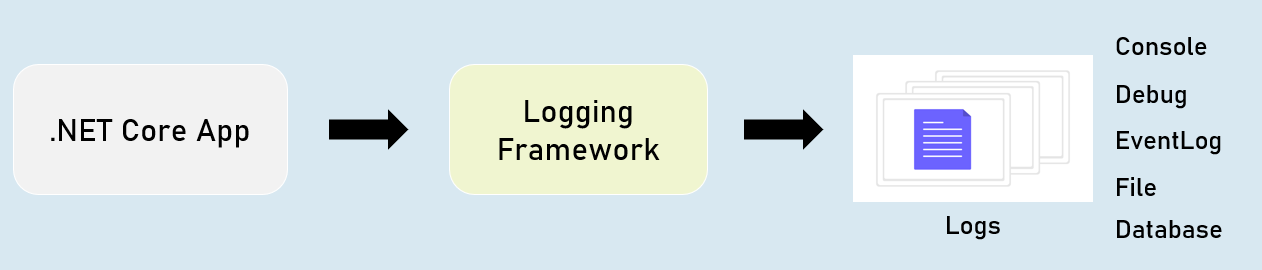
Logging is the process of recording run-time actions as they happen in real-time.
Helps us to understand the failures and performance bottlenecks of the application.
ILogger
Debug
ILogger.LogDebug("log_message");Logs that provide details & values of variables for debugging purpose.
Information
ILogger.LogInformation("log_message");Logs that track the general flow of the application execution.
Warning
ILogger.LogWarning("log_message");Logs that highlight an abnormal or unexpected event.
Error
ILogger.LogError("log_message");Logs to indicate that flow of execution is stopped due to a failure.
Critical
ILogger.LogCritical("log_message");Logs to indicate an unrecoverable application crash.
Logging Configuration
appsettings.json
{“Logging”: {
“LogLevel”: {
“Default”: “Debug | Information | Warning | Error| Critical”
“Microsoft.AspNetCore”: “Debug | Information | Warning | Error | Critical”
}
}
}
Controller and other classes
_logger = logger;
using Microsoft.AspNetCore.Mvc;
using Microsoft.Extensions.Logging;
public class ControllerName : Controller
{
private readonly ILogger<ClassName> _logger;
public ControllerName(ILogger<ClassName> logger)
{
}
}
Logging Providers
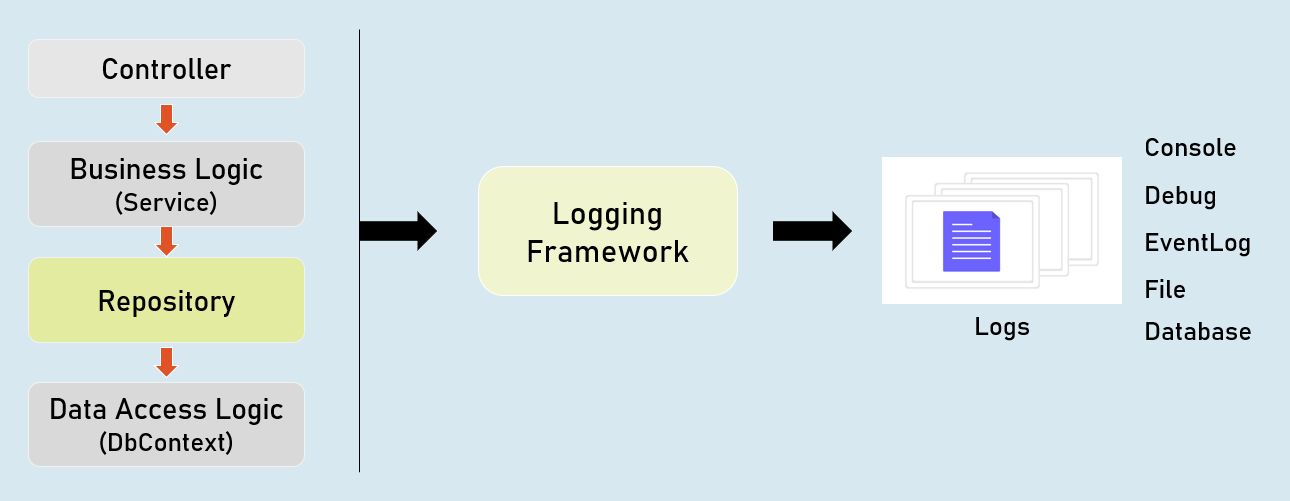
Logging provider specifies where to store / display logs.
The built-in logging providers in asp.net core doesn’t support file / database logging providers.

in Program.cs:
builder.Host.ConfigureLogging(logging =>
{
logging.ClearProviders();
logging.AddConsole();
logging.AddDebug();
logging.AddEventLog();
});
HTTP Logging
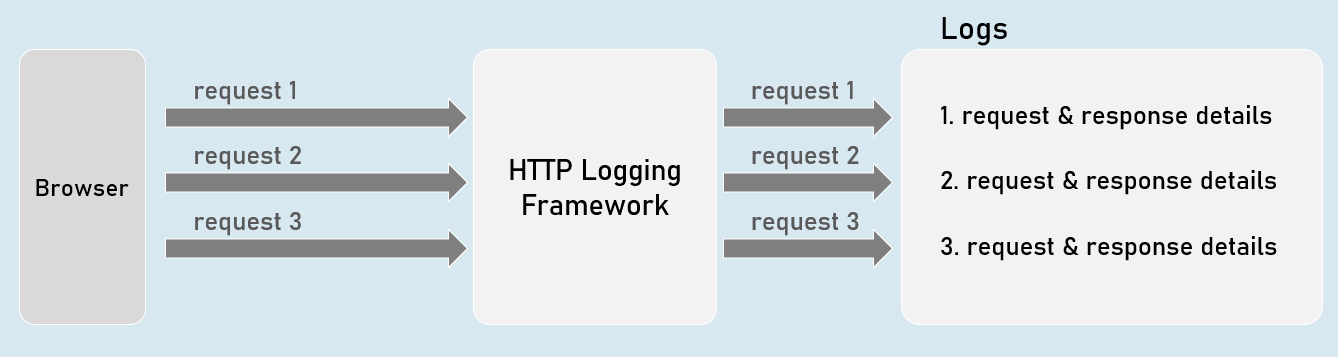
Logs details all HTTP requests and responses.
You need to set a value of “HttpLoggingFields” enum to set specify desired details.
HTTP Logging Options
”HttpLoggingFields” enum:
RequestMethod
Method of request. Eg: GET
RequestPath
Path of request. Eg: /home/index
RequestProtocol
Protocol of request. Eg: HTTP/1.1
RequestScheme
Protocol Scheme of request. Eg: http
RequestQuery
Query string Scheme of request. Eg: ?id=1
RequestHeaders
Headers of request. Eg: Connection: keep-alive
RequestPropertiesAndHeaders
Includes all of above (default)
RequestBody
Entire request body. [has performance drawbacks; not recommended]
Request
Includes all of above
”HttpLoggingFields” enum
ResponseStatusCode
Status code of response. Eg: 200
ResponseHeaders
Headers of response. Eg: Content-Length: 20
ResponsePropertiesAndHeaders
Includes all of above (default)
ResponseBody
Entire response body. [has performance drawbacks; not recommended]
Response
Includes all of above
All
Includes all from request and response
HTTP Logging Options
Program.cs:
builder.Serices.AddHttpLogging(options =>
{
options.LoggingFields = Microsoft.AspNetCore.HttpLogging.HttpLoggingFields.YourOption;
});
Serilog
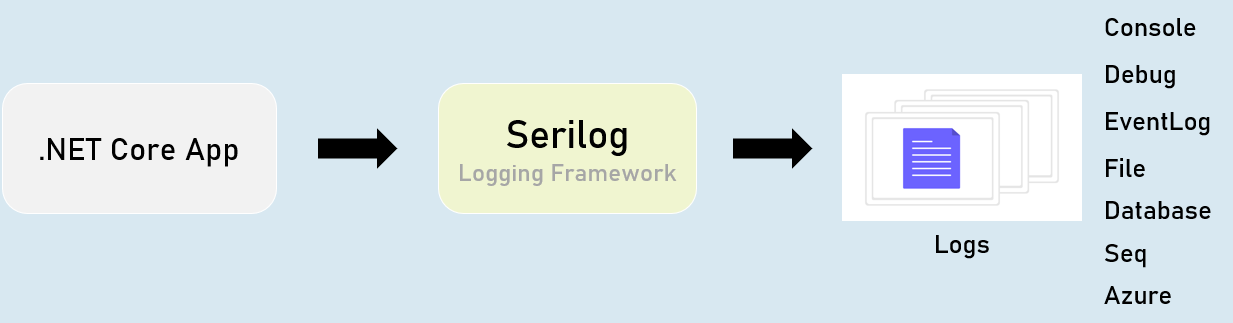
Serilog is a structured logging library for Asp.Net Core.
Supports variety of logging destinations, referred as “Sinks” - starts with Console, Azure, DataDog, ElasticSearch, Amazon CloudWatch, Email and Seq.
Serilog - Configuration
appsettings.json
{“Serilog”: {
“Using”: [
“Serilog.Sinks.YourSinkHere”
],
“MinimumLevel”: “Debug | Information | Warning | Error | Critical”,
“WriteTo”: [
{“Name”: “YourSinkHere”,
“Args”: “YourArguments”
}]
}
}
Serilog - Options
Program.cs:
builder.Host.UseSerilog(HostBuilderContext context,IServiceProvider services, LoggerConfiguration configuration) =>
{configuration
.ReadFrom.Configuration(context.Configuration) //read configuration settings from built-in IConfiguration
.ReadFrom.Services(services); //read services from built-in IServiceProvider
});
Serilog - File Sink
The “Serilog.Sinks.File” logs into a specified file.
You can configure the filename, rolling interval, file size limit etc., using configuration settings.

Serilog - “File Sink” Configuration
appsettings.json
{“Serilog”: {
“Using”: [ “Serilog.Sinks.File” ],
“MinimumLevel”: “Debug | Information | Warning | Error | Critical”,
“WriteTo”: [
{“Name”: “File”,
“Args”: [
“path”: “folder/filename.ext”,
“rollingInterval”: “Minute | Hour | Day | Month | Year | Infinite”,
]
}]
}
}
Serilog - Database Sink
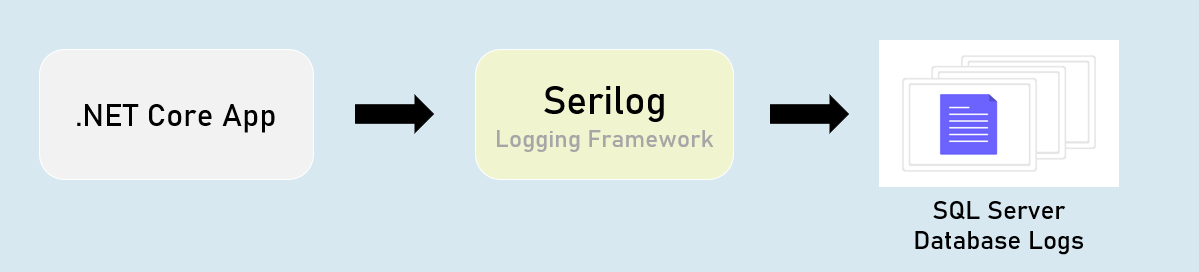
The “Serilog.Sinks.MSSqlServer” logs into a specified SQL Server database.
You can configure the connection string using configuration settings.
Serilog - ‘MSSqlServer’ Sink Configuration
appsettings.json
{“Serilog”: {
“Using”: [ “Serilog.Sinks.MSSqlServer” ],
“MinimumLevel”: “Debug | Information | Warning | Error | Critical”,
“WriteTo”: [
{“Name”: “MSSqlServer”,
“Args”: [
“connectionString”: “your_connection_string_here”,
“tableName”: “table_name”,
]
}]
}
}
Serilog - Seq Sink
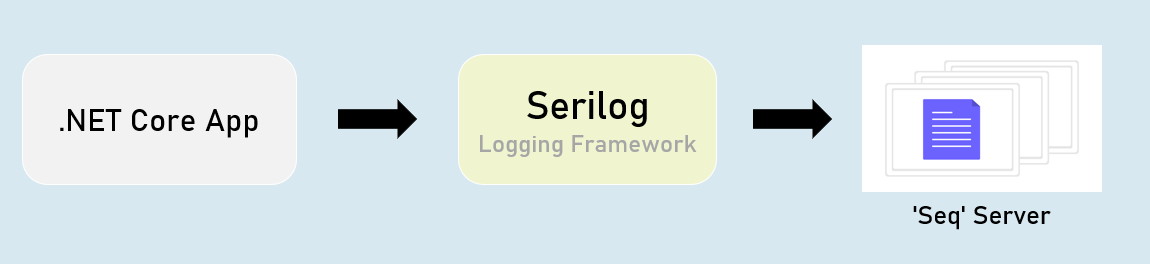
The “Serilog.Sinks.Seq” is a real-time search and analysis server for structured application log data.
Seq server can run on Windows, Linux or Docker.
Serilog - ‘Seq’ Sink - Configuration
appsettings.json
{“Serilog”: {
“Using”: [ “Serilog.Sinks.Seq” ],
“MinimumLevel”: “Debug | Information | Warning | Error | Critical”,
“WriteTo”: [
{“Name”: “Seq”,
“Args”: [
“serverUrl”: “http://localhost:5341”
]
}]
}
}
Serilog - RequestId
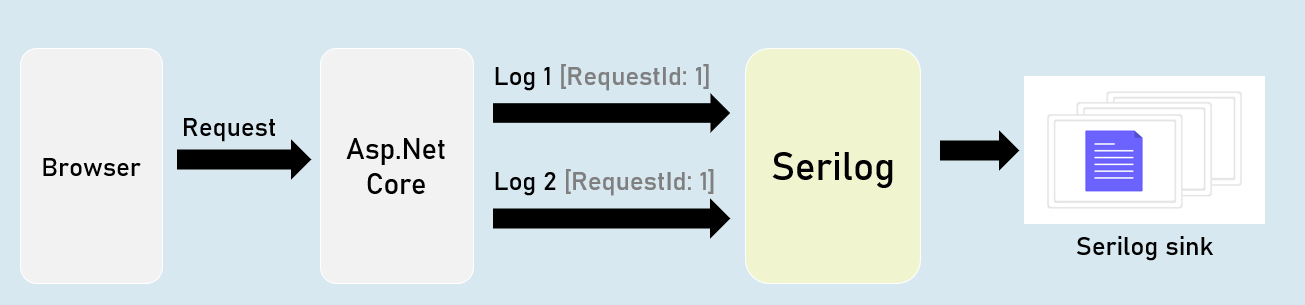
"RequestId" is the unique number (guid) of each individual requests, used to identify to which request the log belongs to.RequestId is “TraceIdentifier” internally, that is generated by Asp.Net Core.
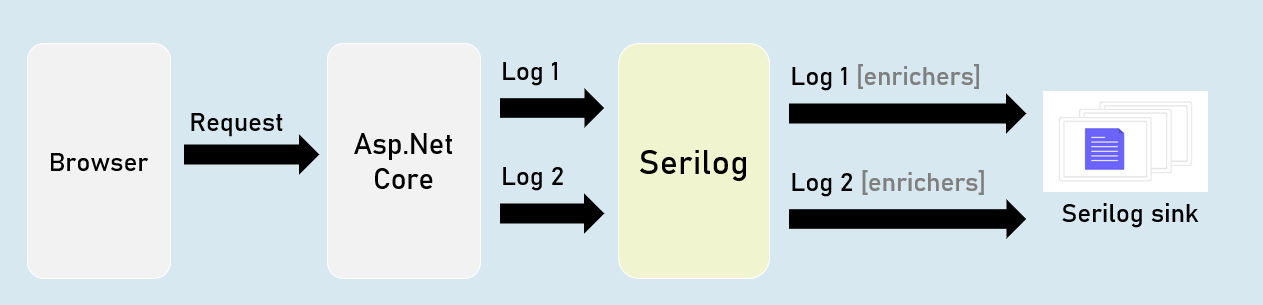
Serilog - Enrichers
Enrichers are additional details that are added to LogContext; so they’re stored in logs.
Eg: MachineName[or]Custom Properties.
Serilog - IDiagnosticContext
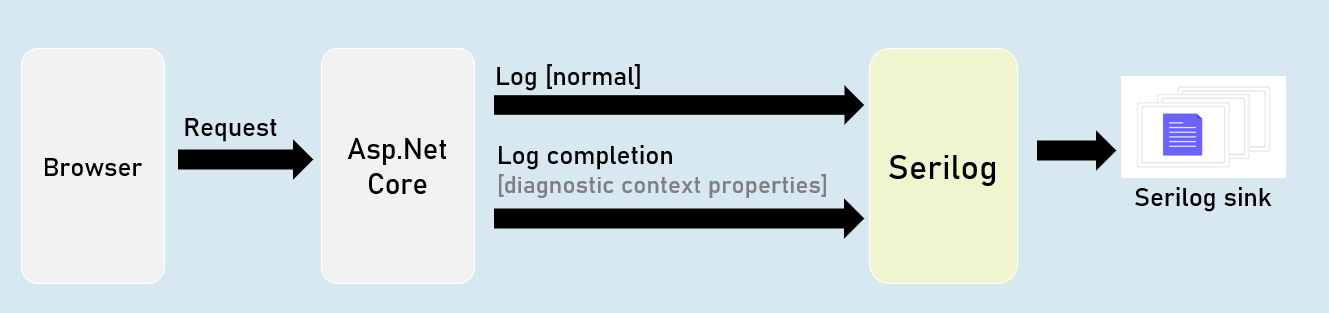
Diagnostic context allows you to add additional enrichment properties to the context; and all those properties are logged at once in the final “log completion event” of the request.
Serilog Timings
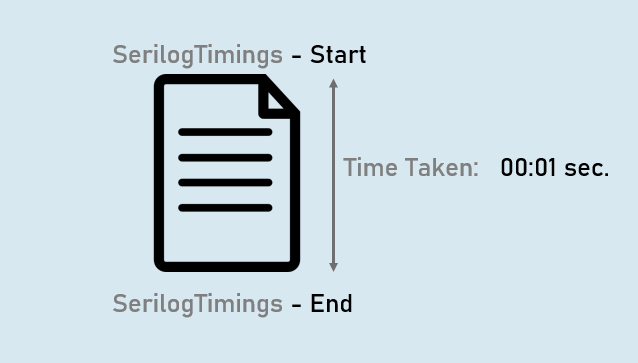
“SerilogTimings” package records timing of a piece of your soure code, indicating how much time taken for executing it.