Introduction to Environments
An environment represents is a system in which the application is deployed and executed.
Development
The environment, where the developer makes changes in the code, commits code to the source control.
Staging
The environment, where the application runs on a server, from which other developers and quality controllers access the application.
Production
The environment, where the real end-users access the application.
Shortly, it’s where the application “live” to the audience.
Environment Setting
Set Environment in launchSettings.json
“profiles”:
“profileName”:
“environmentVariables”:
“DOTNET_ENVIRONMENT”: “EnvironmentNameHere”,
“ASPNETCORE_ENVIRONMENT”: “EnvironmentNameHere”
in launchSettings.json
{
{
{
{
}
}
}
}
Access Environment in Program.cs
app.EnvironmentIWebHostEnvironment
EnvironmentName
Gets or sets name of the environment.
By default it reads the value from either DOTNET_ENVIRONMENT or ASPNETCORE_ENVIRONMENT.
ContentRootPath
Gets or sets absolute path of the application folder.
IsDevelopment()
Returns Boolean true, if the current environment name is “Development”.
IsStaging()
Returns Boolean true, if the current environment name is “Staging”.
IsProduction()
Returns Boolean true, if the current environment name is “Production”.
IsEnvironment(string environmentName)
Returns Boolean true, if the current environment name matches with the specified environment.
Access Environment in Controller and other classes
_webHost = webHost;
using Microsoft.AspNetCore.Mvc;
using Microsoft.AspNetCore.Hosting;
public class ControllerName : Controller
{
private readonly IWebHostEnvironment _webHost;
public ControllerName(IWebHostEnvironment webHost)
{
}
}
Developer Exception Page
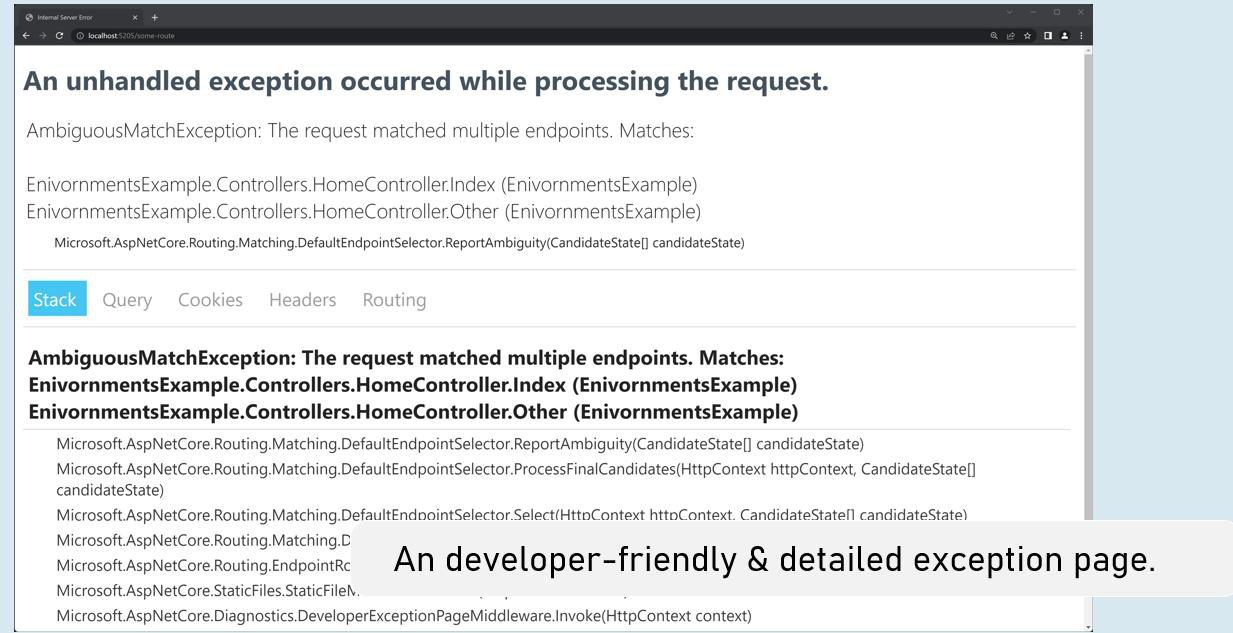
Enable developer exception page
in Program.cs
if (app.Environment.IsDevelopment()
{
app.UseDeveloperExceptionPage();
}
Process-Level Environment
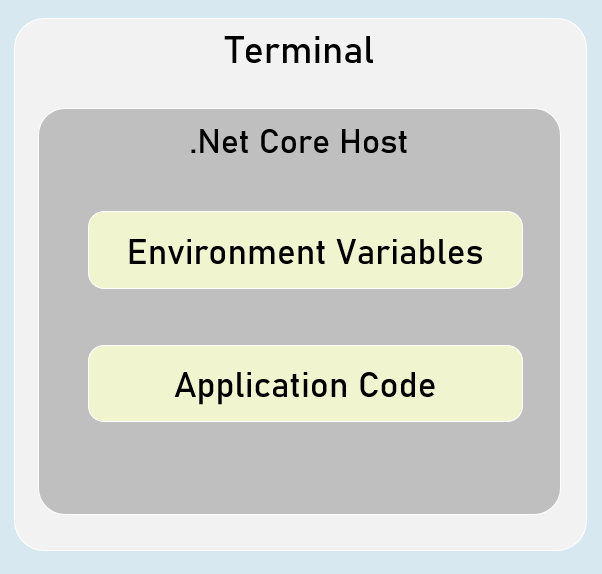
The environment variables are stored & accessible within the same process only.
Setting Environment Variables in Process
in "Windows PowerShell" / "Developer PowerShell in VS"$Env:Environment=“EnvironmentName”
dotnet run --no-launch-profile tag helper
include
html content here
It renders the content only when the current environment name matches with either of the specified environment names in the “include” property.
exclude
html content here
It renders the content only when the current environment name doesn’t match with either of the specified environment names in the “exclude” property.